Animation tags
Name frame ranges to organize and preview separate animations within one artwork.
Create a tag
In the timeline below the canvas, select the first frame header and Shift-click the last, or drag across the frame numbers. Choose + Tag above the headers or Frame → New animation tag.... The dialog starts with the selected range; you can also enter its frame numbers directly.
Enter a unique Tag name, check First frame and Last frame, and choose a direction and color. Both endpoints are included. Select Save tag to create and activate it, or Cancel to leave the artwork unchanged.
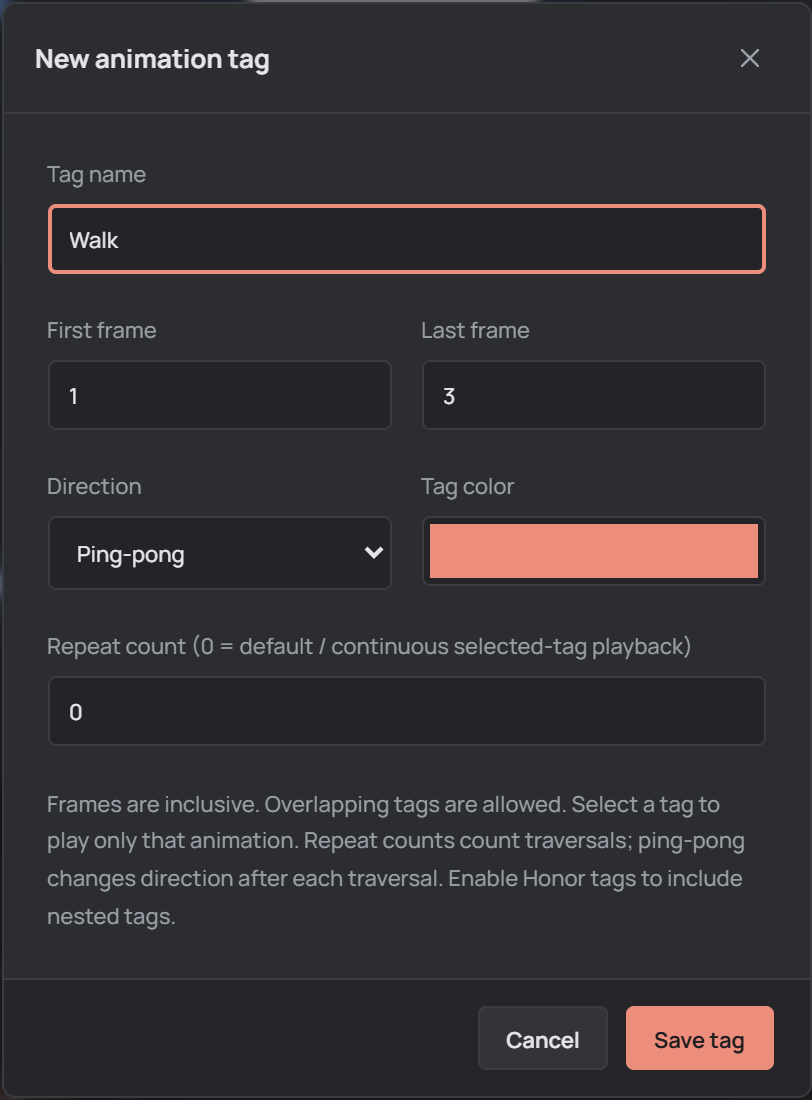
Choose direction and repeat count
Forward plays from the first frame to the last; Reverse starts at the last and moves backward. Ping-pong travels forward and then back, while Ping-pong reverse starts backward and then changes direction.
Repeat count counts traversals of the range; ping-pong changes direction after each traversal. Leave it at 0 for the default behavior and continuous selected-tag playback. The editor preview loops its selected sequence; a nonzero repeat count does not make the editor stop after that many traversals.
The tag color identifies the range in the timeline; it does not recolor the artwork. Individual frame durations still control how long each frame appears.
Select and play a tag
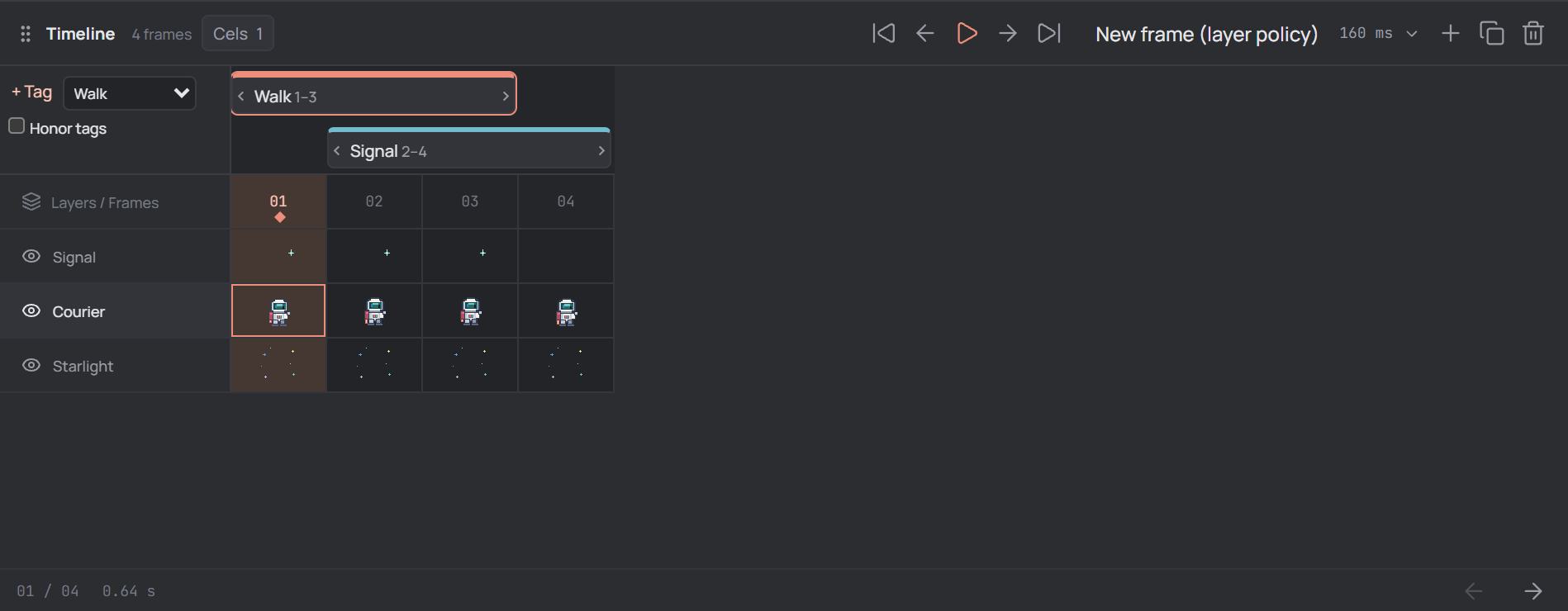
Saved tags appear as colored bars above the frame headers. Click a tag bar or select its name in the Animation range menu to activate it, then use Play animation in the timeline. The canvas and separate Preview panel use the selected tag's range and playback settings.
Choose All Frames in the range menu to return to the full animation. Selecting a tag stops canvas playback and moves to its starting playback frame; press play again to preview it. See Playback for the playback and Preview controls.
Edit or remove a tag
Double-click a tag bar to edit its name, frame range, color, direction, or repeat count. You can also select the tag and choose Frame → Edit animation tag.... Save the changes or cancel them in the dialog.
To adjust a boundary directly, drag the handle at either end of the bar. A focused handle also accepts the left and right arrow keys; hold Shift to move eight frames at a time. The range stays within the artwork's frames.
To remove a tag, open its edit dialog and choose Delete tag. This removes the tag, not its frames or artwork. Use Undo to restore an unintended tag edit, resize, or deletion.
Overlap tags and honor their settings
Tags may overlap or sit inside another tag, allowing the same frames to belong to multiple named animations. With Honor tags unchecked, playback uses the selected tag's settings without applying other tags. Turn it on to include nested and overlapping tags within the playback range; tags extending outside a selected tag are not included in that tag's playback.
Use the range menu and play controls to check the resulting sequence. If playback is not what you expected, verify the active tag, its direction and repeat count, and whether Honor tags is enabled.
Save and export
Choose File → Save project to preserve the tags with the editable artwork. If you add or delete frames, review the tag boundaries afterward; deleting the only frame in a tag removes that tag.
For animation or sprite-sheet exports, select the desired tag under Animation source in the export dialog, or choose All Frames. GIF and animated WebP also offer an option to honor nested and overlapping tags. A sprite sheet can include animation data as JSON; see Exporting artwork for the export workflow.