New artwork
Set up a canvas for a sprite, animation, or other pixel artwork.
Open the dialog
Choose File → New artwork..., press Ctrl + N, or select the New artwork button in the document toolbar.
The dialog opens with the name Untitled, a 48 × 48 canvas, and square pixels. Select Cancel to close it without creating an artwork.
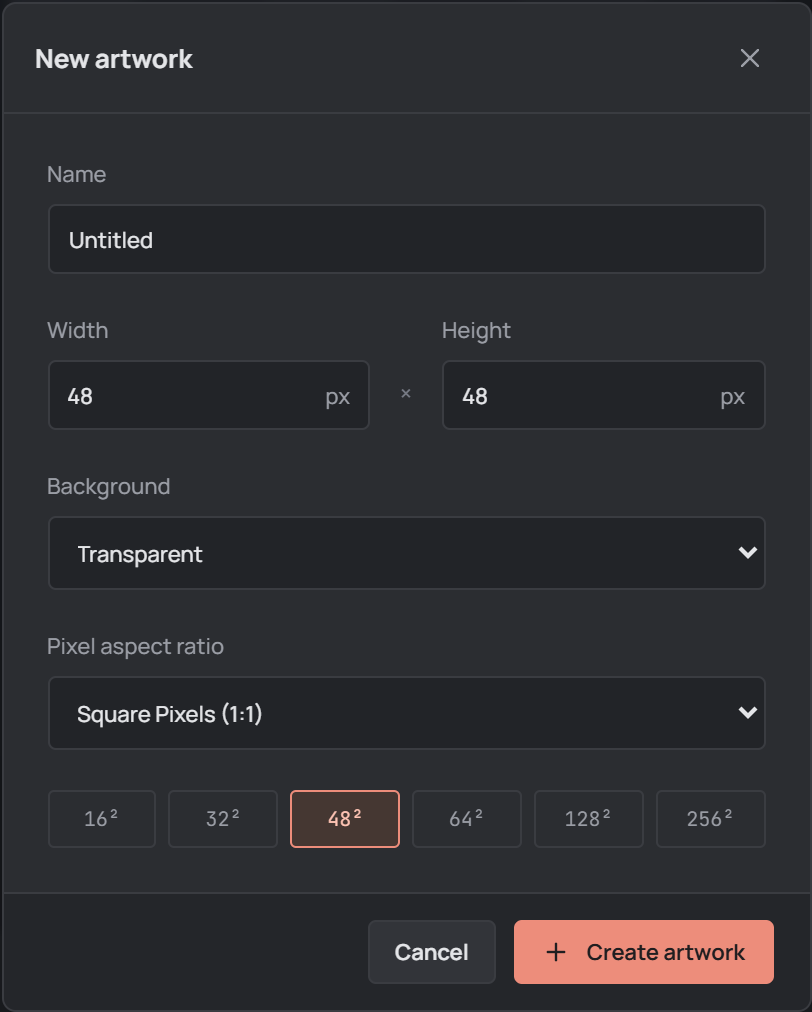
The New artwork dialog with its default settings. Name your artwork
The Name identifies the artwork and suggests a filename when saving. It can contain up to 200 characters; a blank name becomes Untitled.
Set the canvas size
Enter Width and Height in pixels, each a whole number from 1 to 4096. They can differ: a character sprite could use a 32 × 48 canvas.
For a square canvas, select 16², 32², 48², 64², 128², or 256². A preset sets both dimensions; you can edit either afterward.
Choose a background
Choose Transparent for empty pixels, useful for sprites placed over other backgrounds.
Background color fills the initial Background layer with the current background color. Set that color in the editor before opening the dialog. Check the selection each time: the last background choice is retained.
Choose the pixel aspect ratio
Square Pixels (1:1) are equally wide and high. Double-wide Pixels (2:1) appear twice as wide; Double-high Pixels (1:2) appear twice as tall.
The ratio changes the displayed pixel shape, not the canvas dimensions. You can change it later through Sprite → Sprite properties.... When exporting, the pixel ratio can optionally be applied to the resulting image dimensions.
Create and save
Select Create artwork to open it with one layer and one frame. The document bar shows its dimensions.
Choose File → Save project or press Ctrl + S to save editable work as an .opal project. In the desktop app, choose a location when prompted. Use Export separately to create an image.