Keyboard shortcuts
Work quickly with default shortcuts, find commands, and customize bindings for your workflow.
Find and change shortcuts
Choose Help → Keyboard shortcuts. Search by command name or context, then click a shortcut field and press the desired key or combination. The field captures the combination rather than accepting typed text. Use the × beside a command to clear its binding.
Choose Apply shortcuts to validate and save your changes locally, or Cancel to discard the draft. Capturing a new combination replaces that command's existing bindings. If a shortcut conflicts with another command in the same context, the app reports the conflict; clear or change one of them before applying.
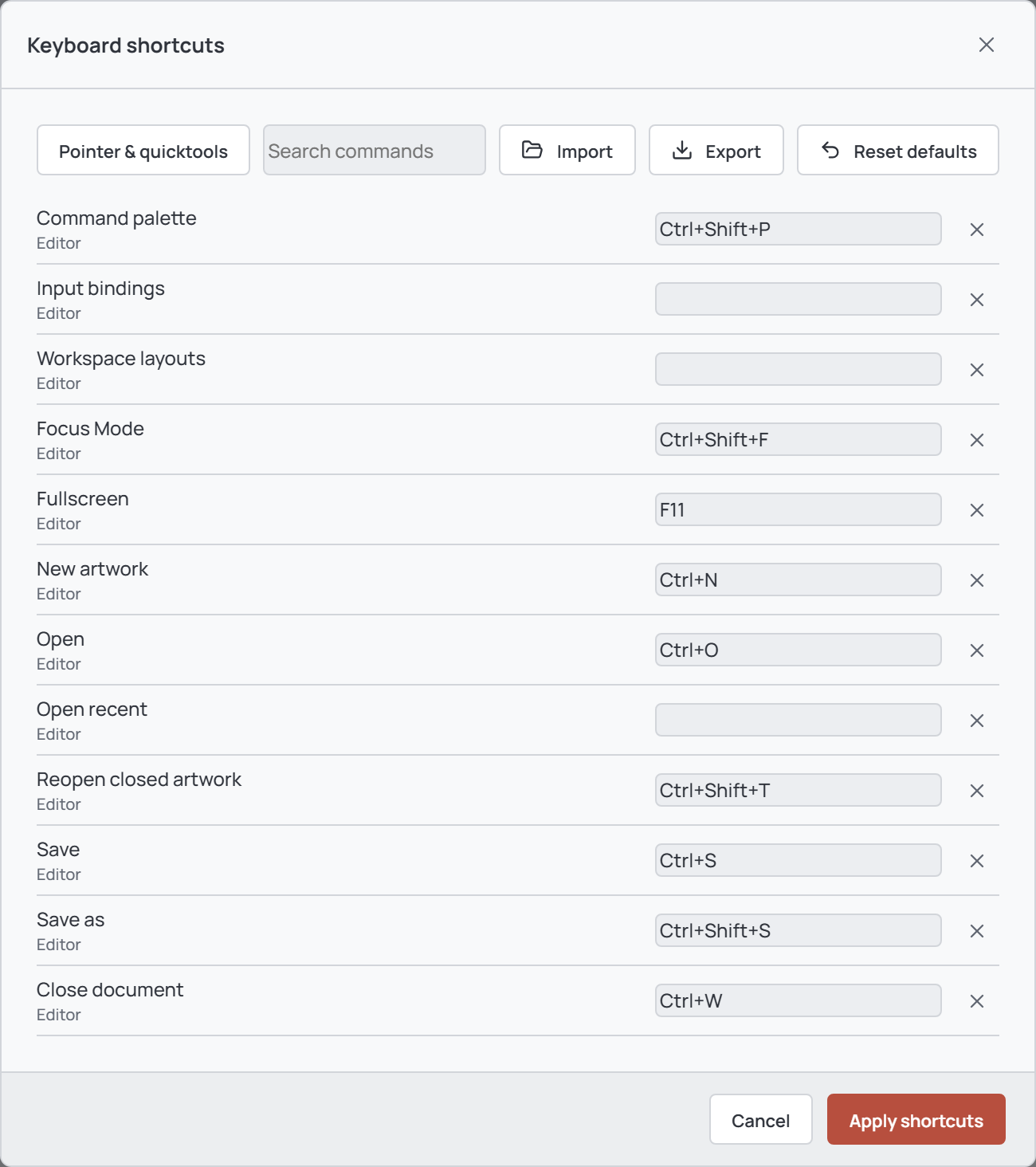
Default file and editing shortcuts
These are the defaults; your saved bindings may differ. On macOS, Command is also accepted in place of Ctrl. Some browser or operating-system shortcuts may take priority.
| Action | Default shortcut |
|---|---|
| New artwork / Open | Ctrl + N / Ctrl + O |
| Save / Save as | Ctrl + S / Ctrl + Shift + S |
| Close / Reopen closed artwork | Ctrl + W / Ctrl + Shift + T |
| Export | Ctrl + Shift + E or Ctrl + E |
| Undo / Redo | Ctrl + Z / Ctrl + Shift + Z or Ctrl + Y |
| Copy / Cut / Paste pixels | Ctrl + C / Ctrl + X / Ctrl + V |
| Select all / Deselect | Ctrl + A / Ctrl + D |
| Clear pixels | Delete or Backspace |
| New layer / Canvas size | Ctrl + Shift + N / C |
| Move selection | Arrow keys; Shift + arrow moves 8 pixels |
Default drawing tools
| Tool | Default shortcut |
|---|---|
| Pencil / Brush / Spray | B / Shift + B / P |
| Blur / Jumble / Eraser | H / Shift + H / E |
| Fill / Gradient / Eyedropper | G / Shift + G / I |
| Line / Curve / Text | L / Shift + L / T |
| Rectangle / Ellipse | U / Shift + U |
| Contour / Polygon | D / Shift + D |
| Rectangular / Elliptical selection | M / Shift + M |
| Lasso / Polygonal lasso | Q / Shift + Q |
| Magic Wand / Move | W / V |
| Smaller / Larger brush | [ / ] |
| Swap colors | X |
By default, hold Space to pan or Alt to temporarily sample colors. Mouse wheel zooms; middle-drag also pans. Configure hold tools and wheel actions separately via Pointer & quicktools in the shortcuts dialog.
Default animation and view shortcuts
| Action | Default shortcut |
|---|---|
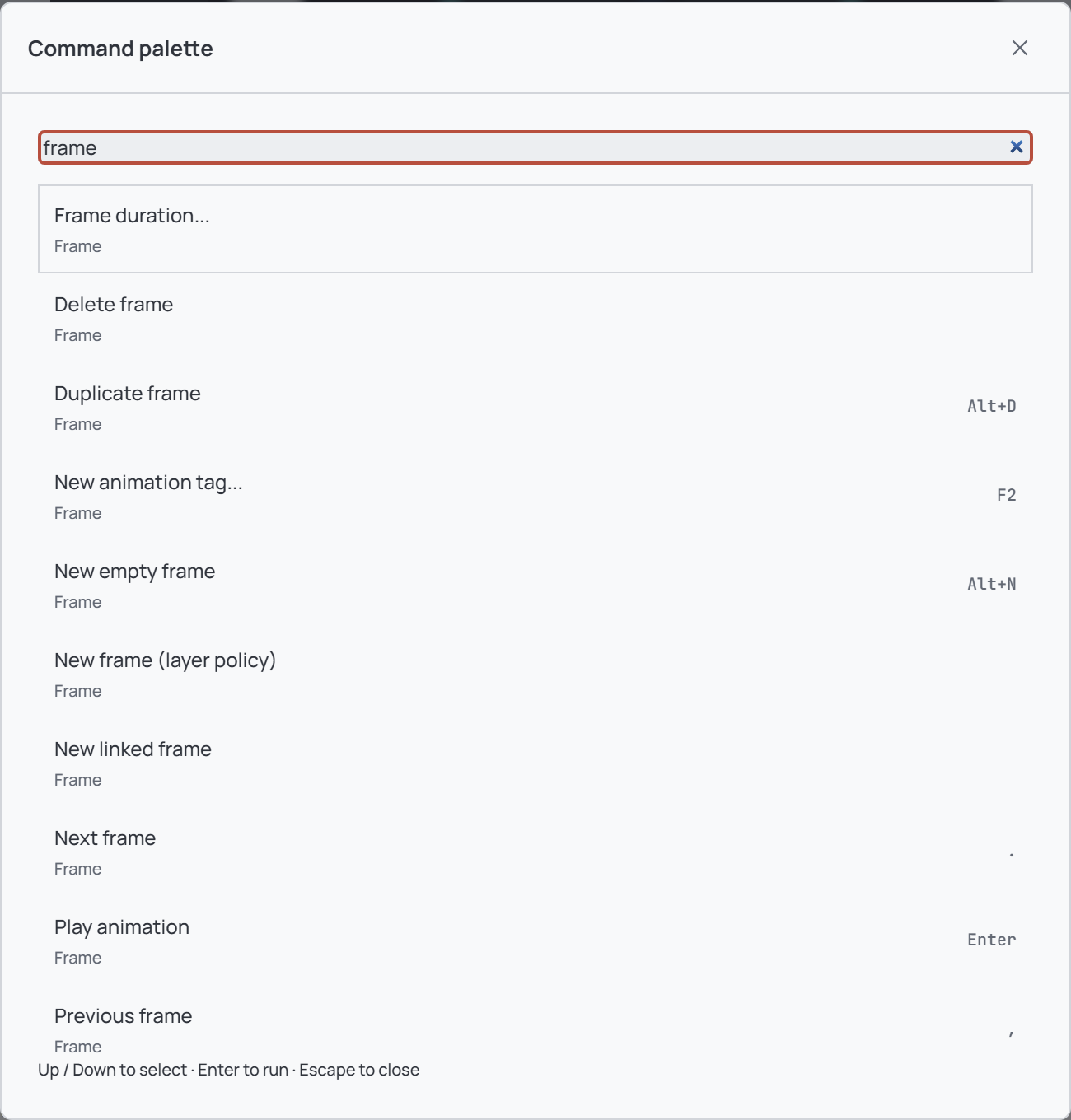
| New / Duplicate frame | Alt + N / Alt + D |
| New or edit animation tag | F2 |
| Play or pause / Previous / Next frame | Enter / , / . |
| Pixel grid / Show grid / Snap to grid | Ctrl + G / Ctrl + ' / Shift + S |
| Onion skin / Fit artwork / Actual size | O / F / 1 |
| Zoom in / Zoom out | + or = / - |
| Focus Mode / Fullscreen | Ctrl + Shift + F / F11 |
| Command palette | Ctrl + Shift + P |
Fullscreen requires the desktop app. See Workspace layouts for Focus Mode and split views.
Editor and timeline contexts
The shortcut list labels each command Editor or Timeline. With a timeline cel focused, Ctrl + C and Ctrl + V copy and paste cels, Ctrl + A selects all cels, and Delete or Backspace clears cels. These can coexist with the same keys for pixel operations in the editor. Arrow keys navigate cels; Shift extends the cel selection.
Click the canvas or a timeline cel to focus the intended area. Text fields and IME composition do not trigger editor commands. Space, Escape, and Tab are reserved for gestures, cancellation, and focus navigation rather than assignable shortcuts.
Search the command palette
Press Ctrl + Shift + P to open the command palette. Type to filter currently available actions, use the up and down arrows to select one, and press Enter or click it to run. Press Escape to close. The list also shows saved shortcuts where available.
Reset, import, and export
In Keyboard shortcuts, choose Reset defaults and then Apply shortcuts to restore all default bindings. Export downloads the current valid draft as a JSON settings file; Import loads a compatible file into the draft. Apply after importing to save it, or cancel to leave saved shortcuts unchanged.
Pointer and quicktool bindings have their own settings and apply separately; resetting keyboard shortcuts does not reset them. Storage or invalid-file errors are shown in the dialog.