Opening & saving
Open existing artwork, keep an editable project, and understand what happens when you close a document with unsaved changes.
Open an artwork
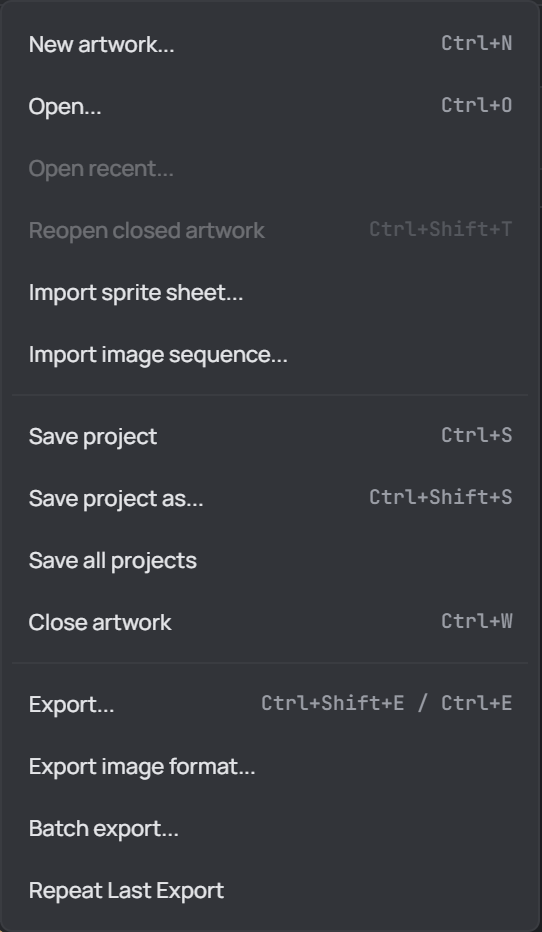
Choose File → Open..., press Ctrl + O, or select the Open artwork button in the document bar. Choose a file in the file picker. The opened artwork appears in its own tab; select a tab to switch between open documents.
Open an .opal file to continue editing a SpriteOpal project. The desktop app can also open PNG, GIF, PSD, WebP, JPEG, BMP, TGA, ICO, and QOI files. Imported images are opened as new artwork; save them as an .opal project to keep subsequent edits.
PSD import may show a review or reject unsupported features. Aseprite project files are not supported; use an .opal project or export PNG or GIF from Aseprite first. GIF, PSD, TGA, and QOI import require the desktop app.
Save an editable project
Choose File → Save project, press Ctrl + S, or use the Save project button in the document bar. In the desktop app, select a location and filename when prompted. SpriteOpal saves the project as an .opal file; use this file to continue editing later.
After an .opal project has a save location, Save project writes to that location. To save under another name or in another folder, choose File → Save project as... or press Ctrl + Shift + S. In the browser version, saving downloads an .opal file instead of writing to an existing desktop path.
With several documents open, File → Save all projects saves documents with unsaved changes. If a save dialog is cancelled, the remaining documents are not saved by that operation.
Save or discard changes before closing
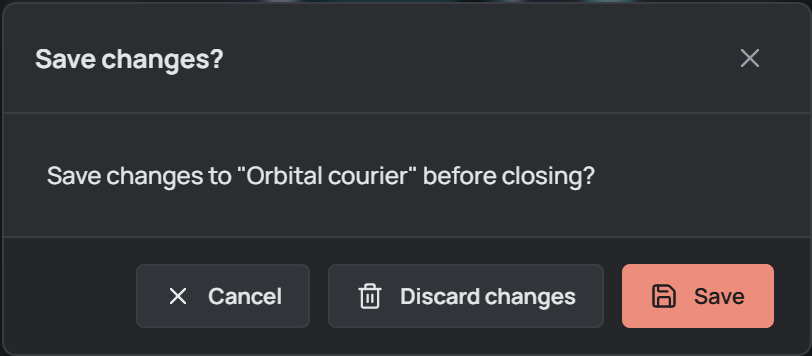
A dot on an artwork tab marks unsaved changes. If you close a modified artwork, SpriteOpal asks what to do: choose Save to save before closing, Discard changes to close without saving them, or Cancel to keep the artwork open. Cancelling the save dialog also leaves it open.
Return to an artwork
In the desktop app, File → Open recent... lists files you have opened or saved. Select an entry to open it, or remove an entry from the list if it is no longer needed.
File → Reopen closed artwork restores the most recently closed artwork when available, including its state at closing. This is a temporary in-memory convenience, not a replacement for saving a project.
Project saving versus export
Save an .opal project for continued editing. Use File → Export... when you need an image or animation for use outside SpriteOpal. Exporting is separate from saving the editable project, so save your project as well.