Colors & palettes
Choose drawing colors, organize a document palette, and reuse palettes across your artwork.
Choose a foreground color
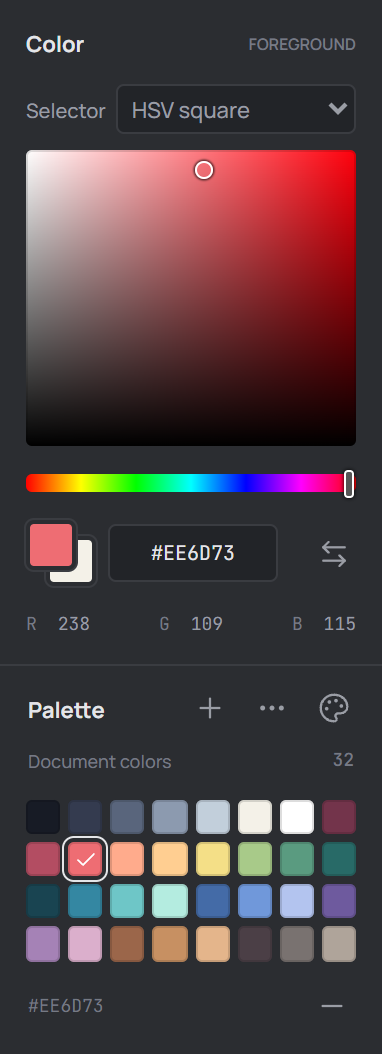
Find Color in the left sidebar. In the default HSV square, adjust the hue slider and click or drag in the square to choose saturation and brightness. The selected foreground color appears in the front swatch and in the hex field below the selector.
For an exact value, enter six hexadecimal digits for RGB, such as #FF8040, or eight for RGBA, such as #FF804080, then leave the field. The last two digits in an RGBA value represent alpha. The R, G, and B values displayed below are decimal channel values.
Use the Selector menu to switch between HSV square, Spectrum, RGB wheel, RYB wheel, and Normal map. Some selectors also offer brightness, harmony swatches, or discrete selection controls.
Foreground and background
The front swatch is the foreground color; the overlapping swatch behind it is the background color. Click a swatch to choose its color, or use Swap colors beside the hex field to exchange them. The default shortcut is X.
The foreground is used for ordinary drawing. On a raster layer, right-click with Pencil or Brush to draw using the background color. You can also select Eyedropper and click the artwork to sample a color into the foreground. See Drawing tools for more about painting and filling.
Use the document palette
The Palette panel shows the current document's color swatches. Click a swatch to set the foreground color, or right-click one to set the background color. The selected color is marked in the grid.
To add the current foreground color, select the + button in the Palette heading. The palette holds up to 256 colors; an existing color is not added again by this button. The − button below the grid removes the current foreground color from the palette.
Edit palette entries
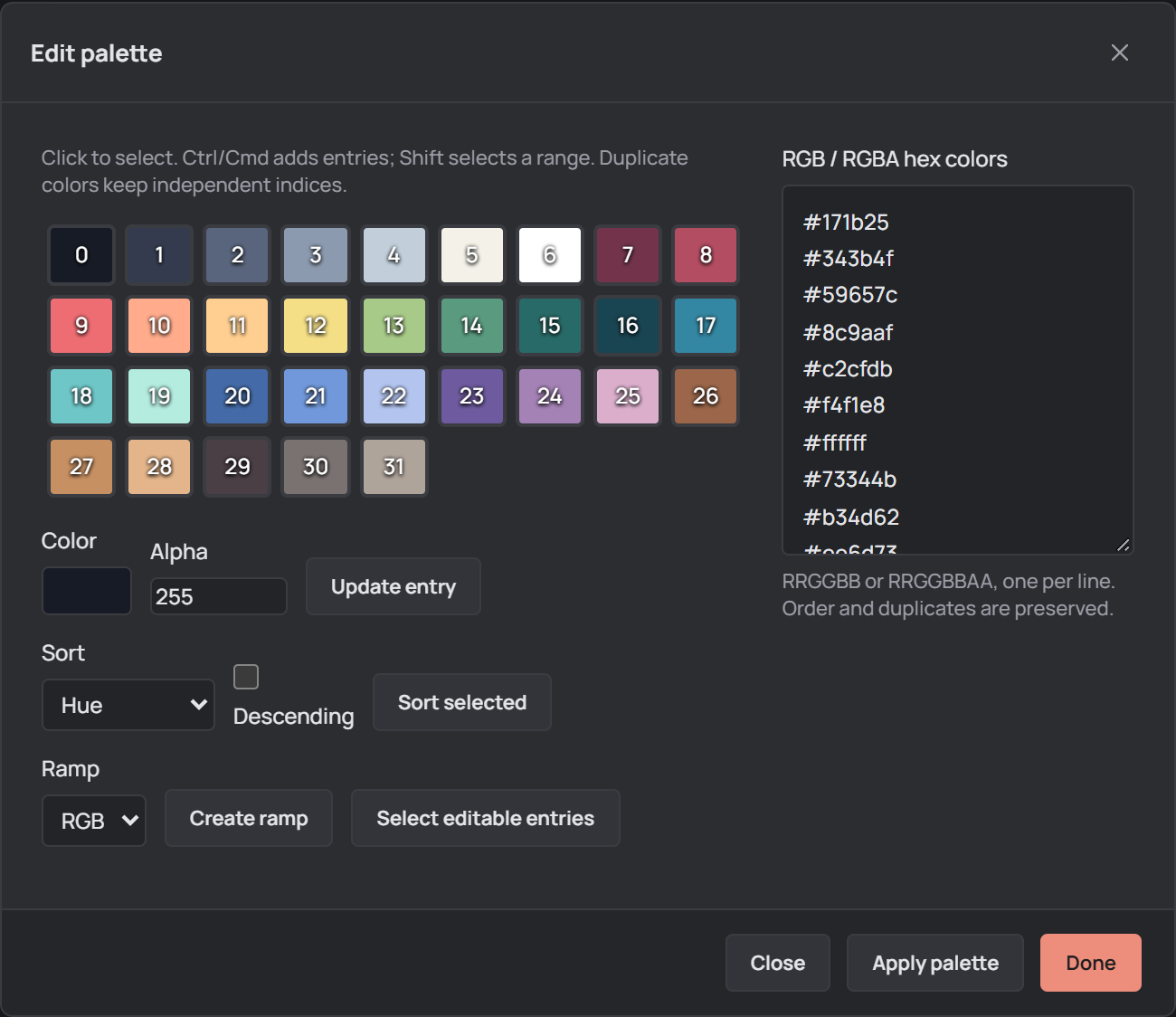
Select Edit palette (the ellipsis button in the Palette heading). Click a numbered entry to edit it, choose its RGB color and an Alpha value from 0 to 255, then select Update entry. Alpha 0 is transparent and 255 is fully opaque.
Hold Ctrl or Cmd while clicking to add entries to a selection, or hold Shift to select a range. Select at least two entries to use Sort selected or Create ramp. A ramp interpolates the selected entries between their first and last colors using RGB or HSV.
To replace the palette from text, enter RGB or RGBA hex colors in the text box, one per line, and select Apply palette. Order and duplicate entries are preserved. Editing an entry, sorting, or creating a ramp applies that operation immediately; Close and Done close the dialog rather than applying unsubmitted text.
Load and save palettes
Select Palette files and presets in the Palette heading. Use Load palette file... or select a preset and choose Use preset. Review the candidate swatches, then select Replace palette to apply them; closing the dialog without replacing leaves the existing palette unchanged.
The loader accepts GPL, PAL, HEX, TXT, and ACT palette files, as well as colors extracted from PNG, GIF, BMP, WebP, or JPEG images. To reuse the current palette elsewhere, choose GPL, PAL, HEX, or PNG in Save current palette and select Save palette.... In the browser version the palette is downloaded.
RGBA and indexed artwork
The document bar shows RGBA or Indexed. In RGBA artwork, editing the palette changes the swatches rather than existing pixels. In indexed artwork, pixels reference palette entries, so changing or replacing colors can change the artwork. Review the result and use Undo if needed.
The palette editor also offers a transparent index for indexed artwork. Changing it swaps entries and remaps indices to preserve the artwork. Save the editable project with File → Save project to keep your palette changes.