Workspace layouts
Arrange panels, save a layout for later, and make more room for your artwork.
Open the layout settings
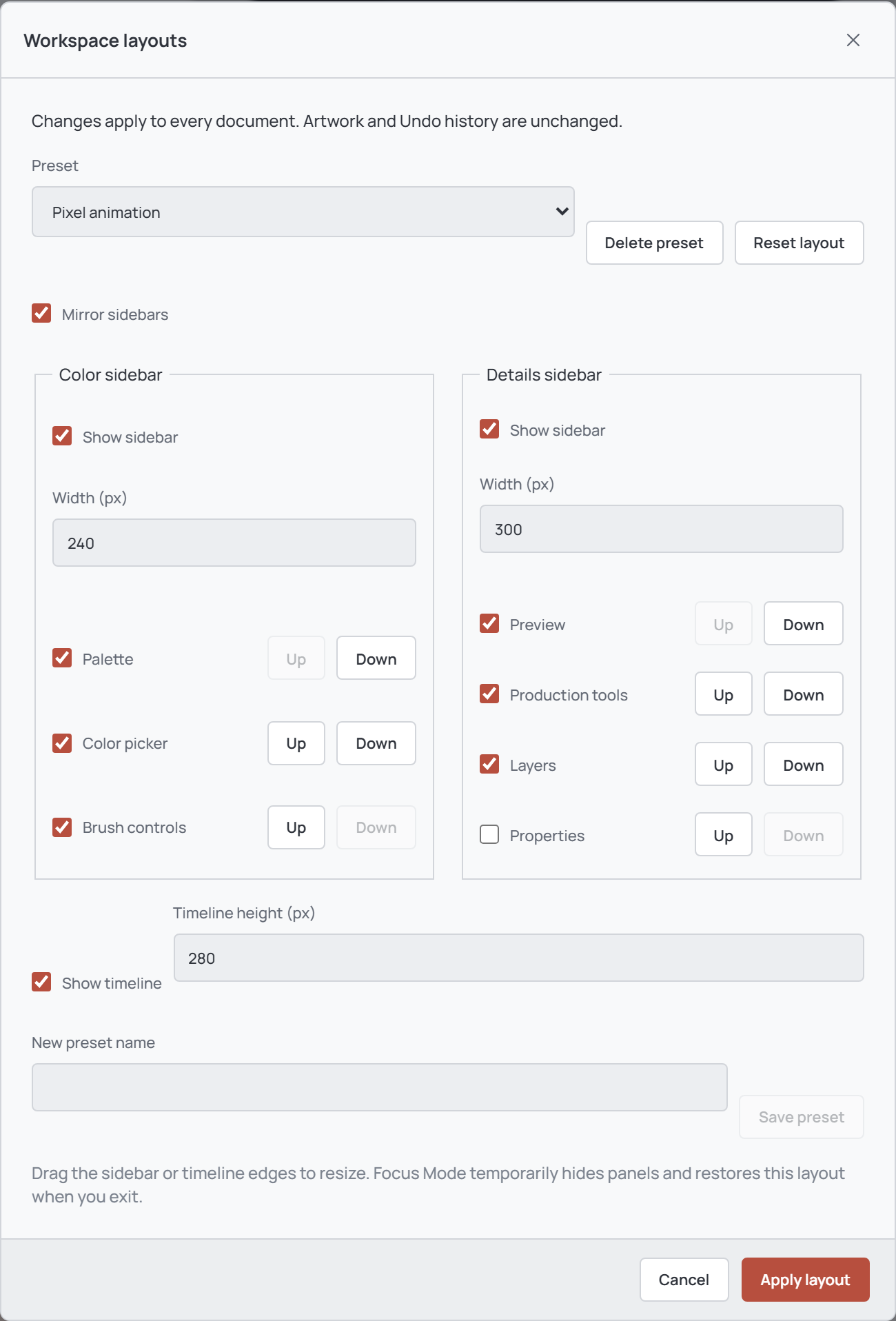
Choose View → Workspace layouts.... Select Default, Drawing, or Animation under Preset as a starting point. Drawing hides the details sidebar and timeline; Animation hides the color sidebar and enlarges the timeline.
Adjust the settings, then choose Apply layout. Choose Cancel to discard changes made in the dialog, including preset changes. The layout applies to all open documents; it does not change the artwork or its Undo history.
Show, hide, and arrange panels
Use Show sidebar for each sidebar and Show timeline to show or hide the entire area. Within a sidebar, uncheck an individual panel to hide it, or use its Up and Down buttons to change its order. A panel must be enabled and its sidebar visible to appear.
Enable Mirror sidebars to swap the color and details sidebars. Enter widths from 170–480 px for the color sidebar and 210–480 px for the details sidebar; timeline height accepts 120–480 px. The displayed sizes may be fitted to a smaller window without changing the saved sizes.
Resize with dividers
Drag the divider at the inner edge of either visible sidebar or above the timeline. You can also focus a divider and use the arrow keys: each press changes its size by 10 px, or 20 px while holding Shift. Press Escape during a drag to cancel it.
Divider changes are saved in the current layout. If a sidebar or timeline is hidden, turn it back on in Workspace layouts... to access its divider.
Save or reset a preset
Configure the layout, enter a unique New preset name, and select Save preset. Then choose Apply layout to keep the preset and current layout. Names can be 1–80 characters; up to 16 custom presets can be stored locally.
Select a saved preset from the menu to load its settings, then apply them. To remove a custom preset, select it, choose Delete preset, and apply. Built-in presets cannot be deleted. Reset layout restores the default settings in the dialog; apply to use them or cancel to keep your current layout.
Use Focus Mode
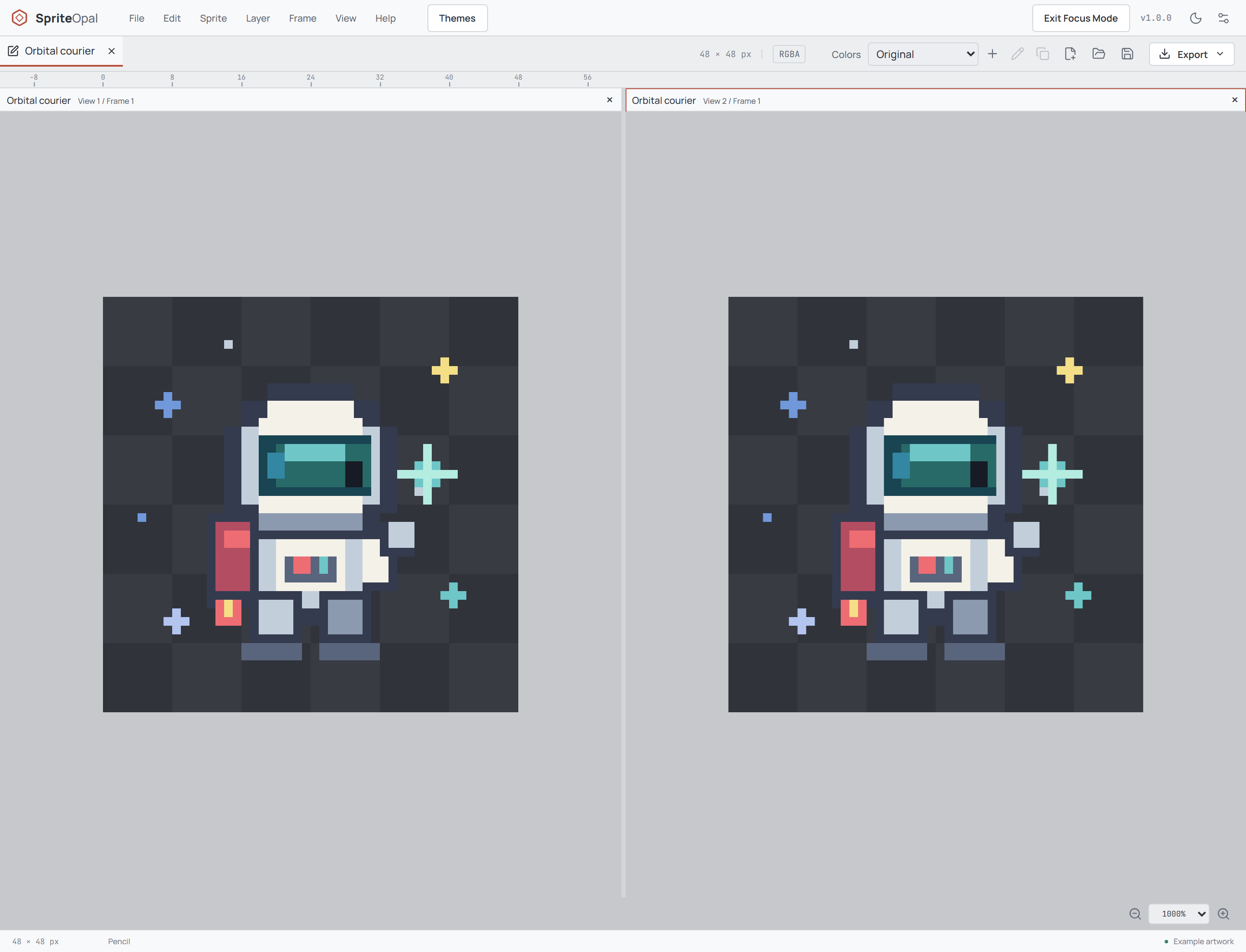
Choose View → Focus Mode or press Ctrl + Shift + F to temporarily hide the tool rail, sidebars, and timeline. Select Exit Focus Mode in the top bar or use the shortcut again to restore the previous layout. Escape first cancels an active gesture, menu, or pixel selection; otherwise it exits Focus Mode.
Split views and fullscreen
Use View → Split Horizontally for side-by-side views or Split Vertically for stacked views. Duplicate View adds another view in the current direction. Up to four views can be open; click a view to activate it and drag the divider between views to resize them.
Views of the same artwork share its pixels and Undo history but can use different frame, layer, zoom, and pan settings. Close a view with its × button or View → Close View. Closing the last view closes the artwork, so save changes when prompted.
For more screen space, View → Fullscreen or F11 toggles the desktop app's fullscreen window. Fullscreen is separate from Focus Mode and is unavailable in the browser version. For an introduction to the panels, see Workspace overview.