Playback
Preview your animation on the canvas or in the separate Preview panel, and adjust its timing and playback range.
Play the animation on the canvas
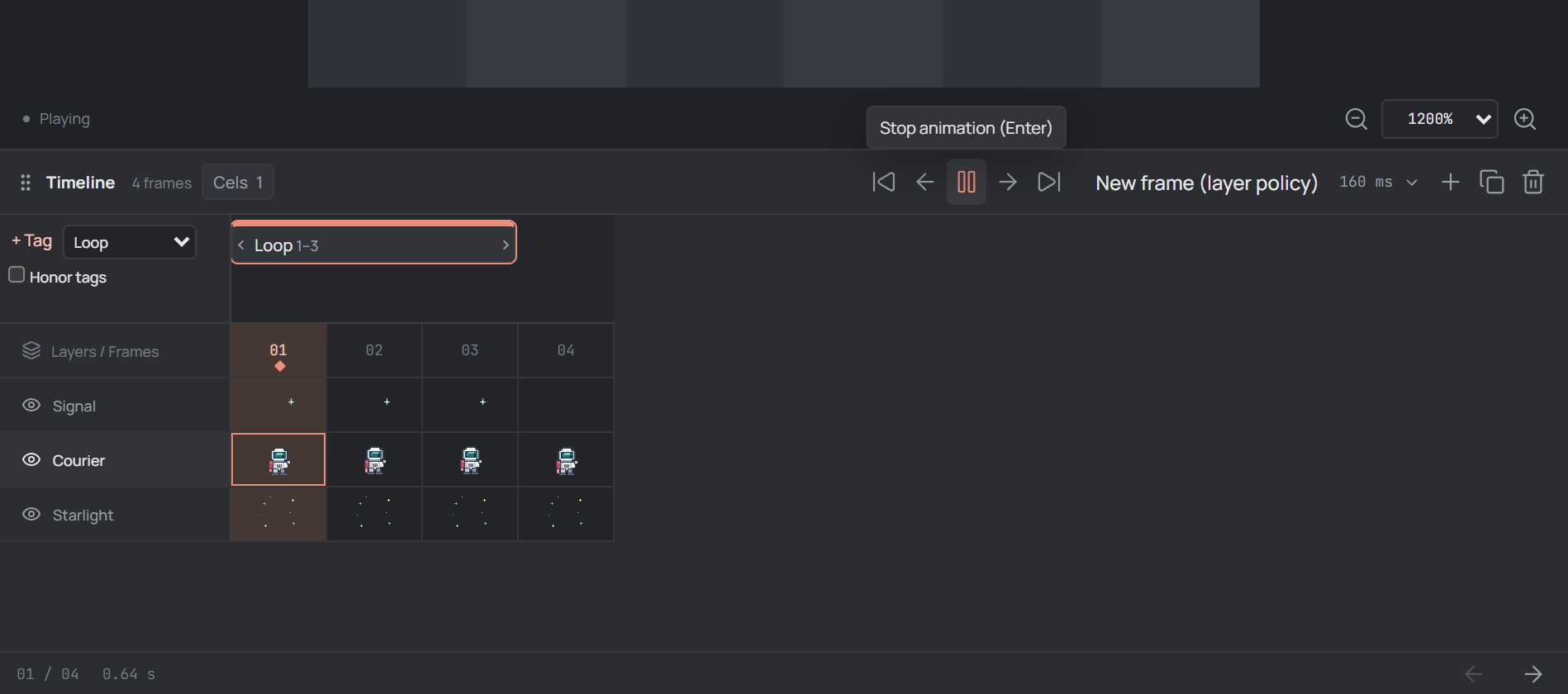
Open an artwork with multiple frames and find the controls in the Timeline toolbar below the canvas. Select Play animation to start playback. The active frame advances in the timeline and a Playing indicator appears below the canvas.
Select Stop animation to pause on the current frame. With the editor focused, Enter also toggles canvas playback. Selecting a frame header or cel stops playback so you can work on that frame.
Step through frames
Stop playback to inspect individual drawings. Use First frame, Previous frame, Next frame, and Last frame in the timeline toolbar, or click a numbered frame header. The , and . shortcuts move to the previous and next frame when the editor has focus.
The timeline footer shows the current frame number and the sum of all frame durations. For creating, reordering, and selecting frames, see Frames & timeline.
Use the separate Preview panel
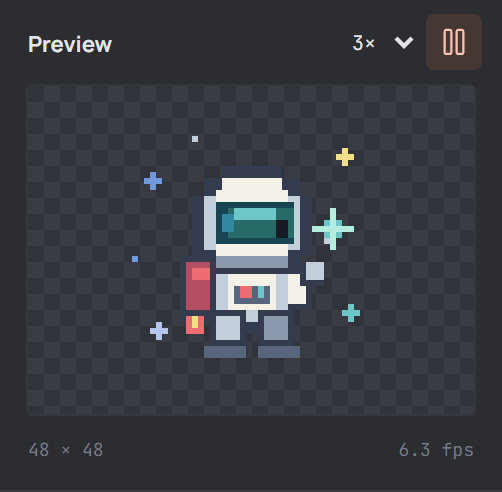
The Preview panel in the right sidebar has its own play and pause button. It can animate while the main canvas is stopped, so you can inspect motion alongside an editable frame. Its playback is independent of the timeline's play button; pausing the preview displays the current canvas frame.
Use the panel's scale menu to choose 1×, 2×, 3×, or 4×; this only changes the preview size. Below it, the dimensions are shown in pixels and the fps value is calculated from the current canvas frame's duration. When frame durations differ, that value is not an average for the whole animation.
Change timing
Each frame has a duration in milliseconds. Select a frame, click its ms value in the timeline toolbar, enter a value from 20 to 10000, and choose Apply duration. Shorter durations make that frame pass faster; longer durations hold it on screen.
Check Apply to all frames in the dialog to give every frame the same duration. Otherwise only the active frame changes. For example, 100 ms per frame corresponds to 10 fps when all frames have that duration.
Play all frames or a tag
In the timeline's animation range menu, choose All Frames to play the full sequence. To preview just one animation, choose an existing tag from that menu or click its colored tag in the timeline. Both canvas playback and the Preview panel use the selected range; the selected tag's direction and repeat settings shape its sequence.
The sequence loops during preview. Enable Honor tags to include nested and overlapping tags in playback; it is optional. See Animation tags for creating ranges and configuring their direction and repeat counts.
Compare and troubleshoot
If motion seems too fast or slow, check each frame's duration. If the sequence omits frames, check the selected animation range and Honor tags. If a part of the sprite is missing, check its layer and group visibility.
For editing between frames, toggle Onion skin on the canvas toolbar or press O; the adjacent options control neighboring frames, tint, and opacity. Onion skins are hidden during canvas playback and return when playback stops if the option remains enabled.
Playback does not replace saving: choose File → Save project to preserve the editable animation.