Importing images
Open an image as artwork, split a sprite sheet into frames, or build an animation from separate image files.
Open an image
Choose File → Open..., press Ctrl + O, or select Open artwork in the document bar. Choose an image to open it as a new artwork tab; your existing artwork remains open. A static image becomes a single-frame artwork.
The desktop app supports PNG, GIF, PSD, WebP, JPEG, BMP, TGA, ICO, and QOI. Animated GIFs can open with their frames. GIF, PSD, TGA, and QOI import require the desktop app. Aseprite project files are not supported; export PNG or GIF from Aseprite first.
For a supported PSD in the desktop app, review the layers, frames, and any warnings in Import PSD artwork, then choose Import artwork or Cancel. Unsupported PSD features may be rejected rather than imported. The original image is not changed.
Split a sprite sheet
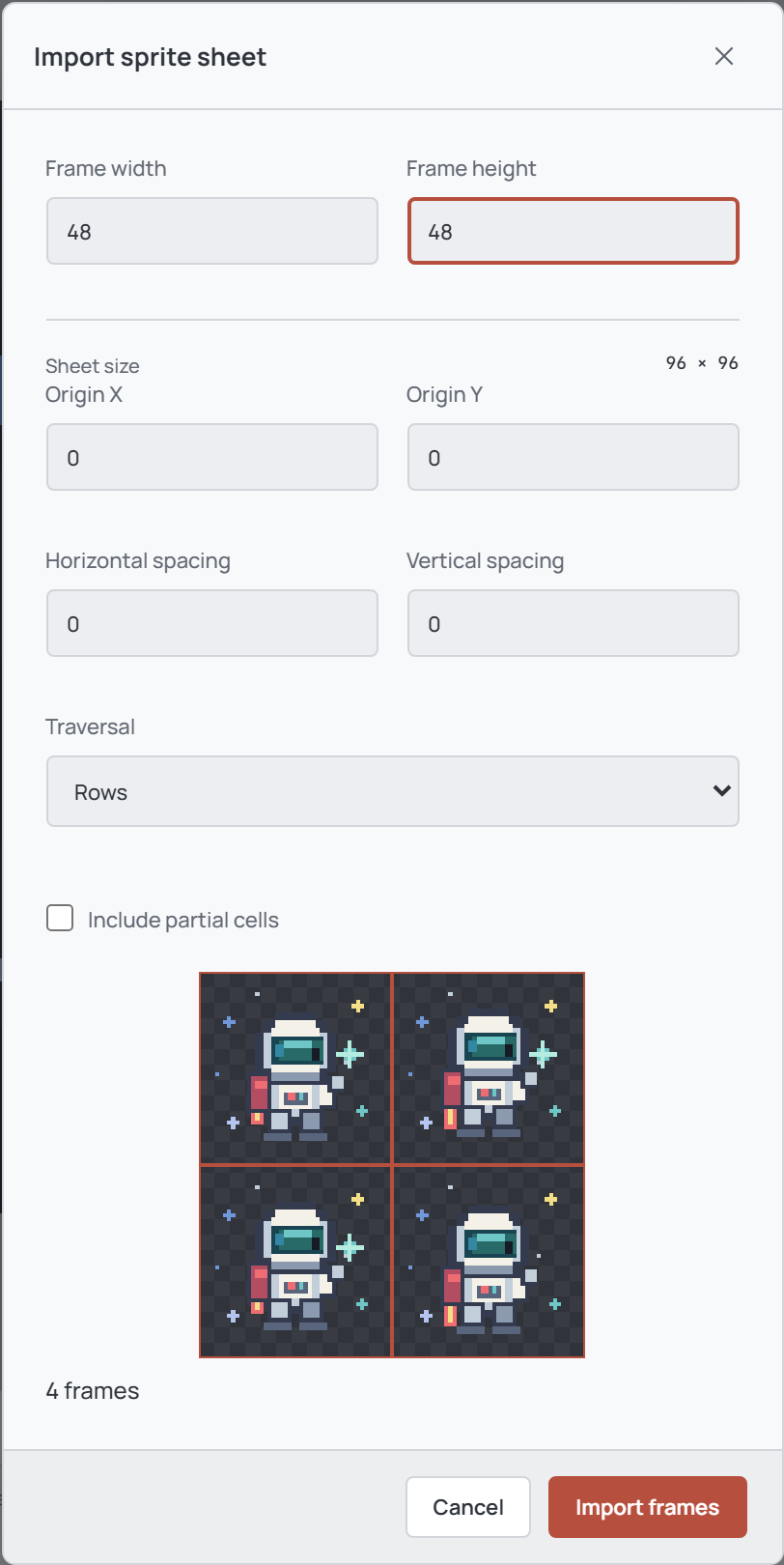
Choose File → Import sprite sheet... and select an image. Set Frame width and Frame height to the size of one cell, not the size of the whole sheet. For example, a 96 × 96 sheet arranged in a 2 × 2 grid can be split into four 48 × 48 frames.
Set Origin X and Origin Y to the first cell's offset from the upper-left corner. Use Horizontal spacing and Vertical spacing for gaps between cells. These values are in pixels.
Choose frame order and edges
Under Traversal, choose Rows to read each row from left to right, or Columns to read each column from top to bottom. Horizontal strip uses only the first row; Vertical strip uses only the first column.
By default, incomplete cells at the sheet edges are skipped. Enable Include partial cells to include them with transparent padding. Check the outlined preview and frame count, then choose Import frames to create a new artwork, or Cancel to stop. A sheet can contain at most 512 cells; document size limits also apply.
Import an image sequence
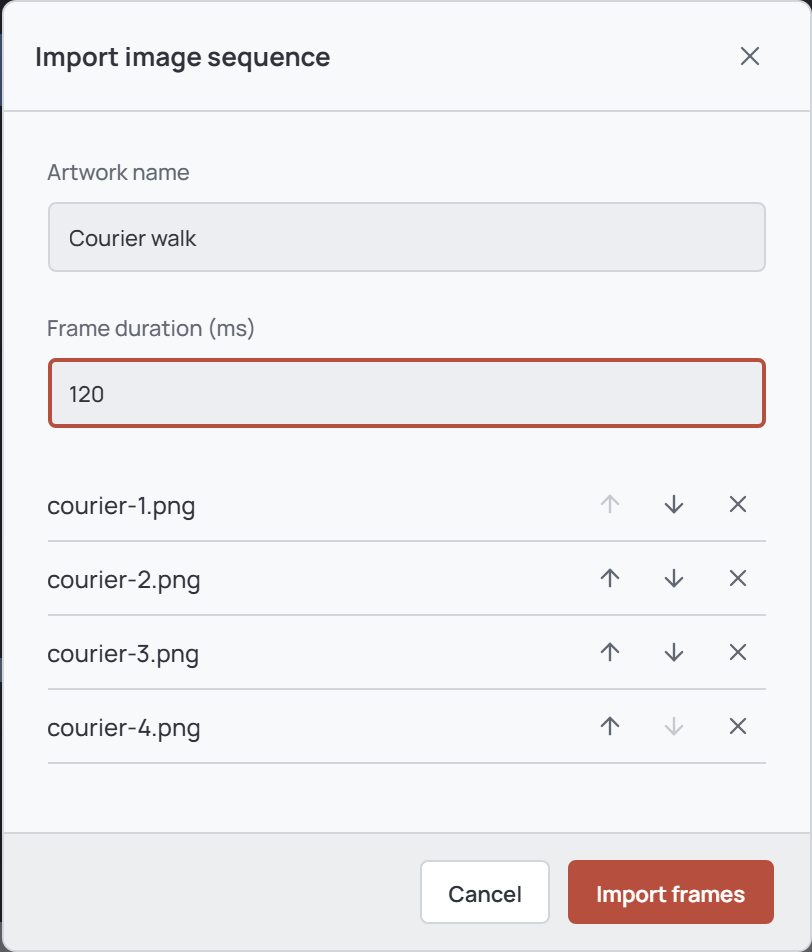
Choose File → Import image sequence... and select up to 512 static images with matching dimensions. The desktop picker supports PNG, WebP, JPEG, BMP, TGA, and QOI; the browser picker supports PNG, WebP, JPEG, and BMP.
The files are initially sorted by name using numeric order, so frame2 comes before frame10. Use the up and down arrows to change the order, or the remove button to exclude a file. Enter an Artwork name and a Frame duration (ms) from 20 to 10000; the duration applies to every imported frame.
Choose Import frames to create a new animation, or Cancel to leave the current artwork unchanged. If import fails, check the image dimensions, file types, and the message shown by the app.
Review and save
Use the timeline to select frames and play the animation. Frame durations can be changed afterward; see Frames & timeline and Playback.
Choose File → Save project to save the imported artwork as an editable .opal project. Importing does not overwrite the source images; use Export separately when you need an image or animation file.